 My Finances Planner
Contents
Quick start
Four steps and your first cycle is planned.
The app plans the month the way salary works. If you're paid on the 27th, your cycle runs from the 27th to the 26th, not the 1st to the 31st. Everything else — Overview, Income, Payments and the widgets — follows that cycle.
Export a backup from the iPhone app and import it here — see Backup & moving from iPhone. Everything in the Android app is free.
1Opening the app
A lock screen first, then your tabs along the bottom.
Keep it private
The app locks by default. Unlock with your fingerprint, face unlock or your phone's screen lock — or set an App PIN in Settings → Security as a backup. If you leave the app for more than three minutes, it locks again. You can turn the lock off in the same place.
Your tabs
The bottom bar holds four tabs plus More, which lists the rest (Income, Installments, Savings, Salary & EOS, Search, Settings). In Settings → Tab Order, move the screens you use most into the first four places.
The lock only controls opening the app on that phone. Your fingerprint and face data stay with Android — the app never sees them, and an App PIN is stored only as a scrambled (hashed) value.
2Profiles & your billing cycle
A profile is a separate set of numbers — yours, a partner's, or a second budget.
Each profile has its own income, payments, cards, expenses, savings, installments, salary details, end-of-service settings and cycle start day.
Switch, add or rename
- Open More → Settings.
- Under Profiles, tap Switch next to a profile, or Add Profile… to create one.
- Use Rename or Delete. Deleting a profile deletes its data.
Set your billing cycle
Under Billing Cycle (this profile), choose the day your cycle starts:
- Day 1 gives calendar months, like 01 Aug – 31 Aug.
- Day 27 gives 27 Jul – 26 Aug for the cycle that ends in August.
- Day 31 starts on the 31st, or on the last day of shorter months (28 or 29 February, 30 April).
Match the start day to when your salary usually arrives. Bill due dates stay real calendar days (the 16th of October), separate from the cycle.
3Overview — your money at a glance
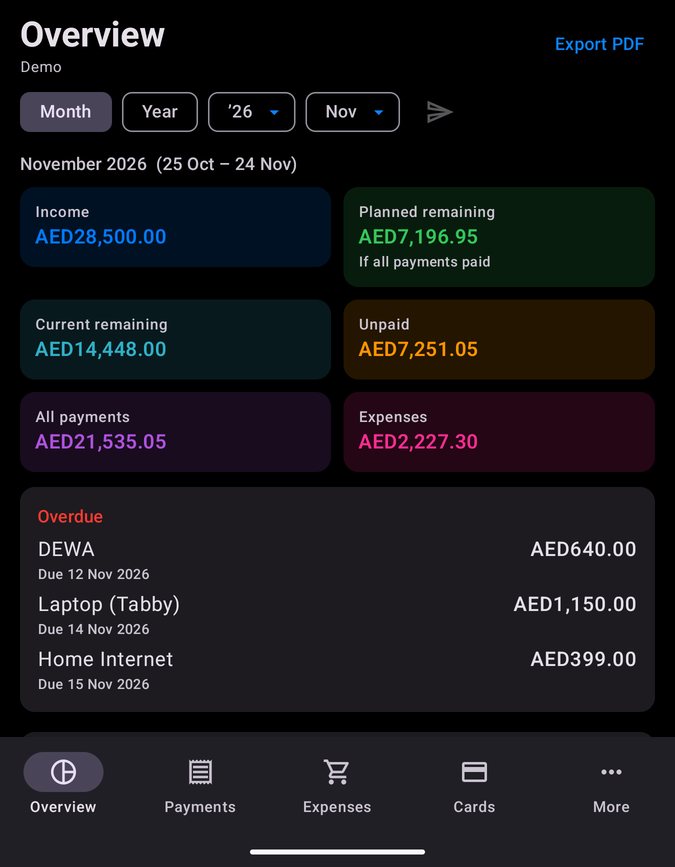
The home dashboard for the profile you're using.
Pick Month or Year, then the year and cycle. The arrow button jumps back to the current cycle.
What the tiles mean
Overdue & coming up
Bills that are late or due soon are listed under the tiles with their real dates. Below them you'll see each credit card with what's owed and what's left.
Export PDF
Tap Export PDF to share a summary of the cycle you're viewing: income, paid and unpaid payments, expenses by category, and what's left.
Breakdown, categories & history
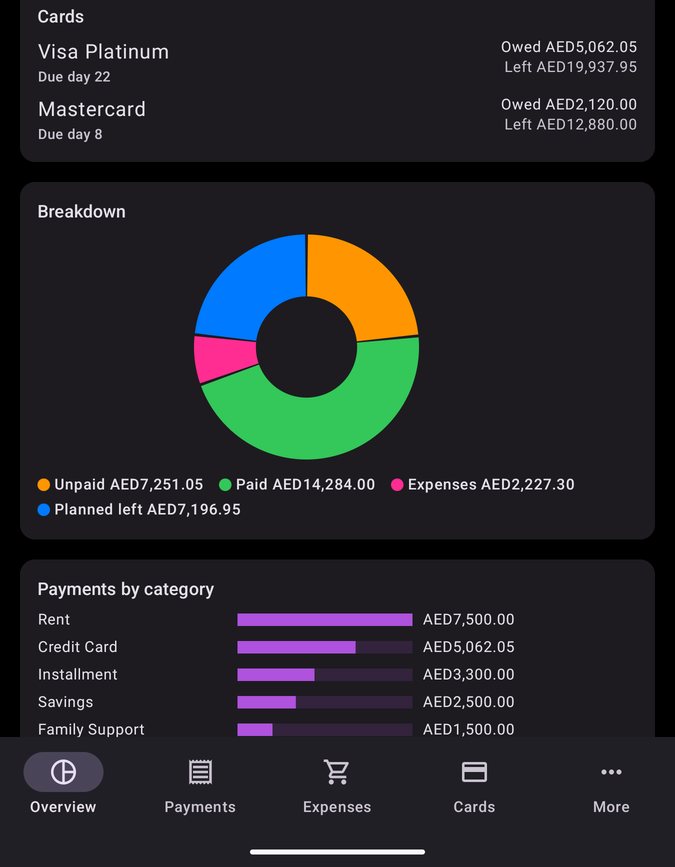
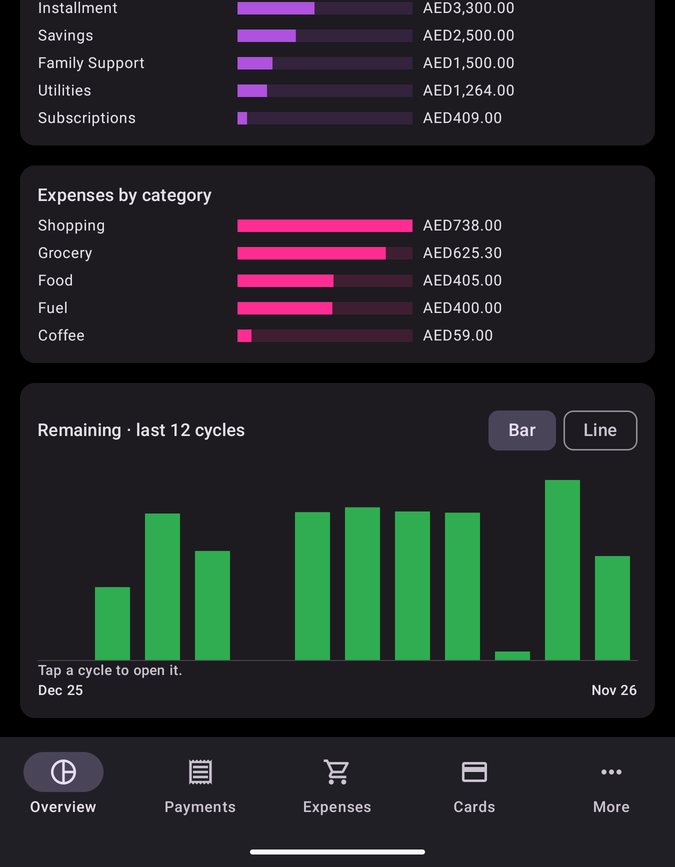
Scroll down for the Breakdown chart (unpaid, paid, expenses and planned left), payments and expenses by category, and the last 12 cycles. Switch the history between Bar and Line, and tap any cycle to open it.
4Income
Record what you receive each cycle.
Open More → Income, tap +, and add the month, amount and an optional note. Each row shows its cycle range under the month name (for example, 27 Jul – 26 Aug).
- If you've filled in Salary, your total monthly salary is suggested as the amount.
- Edit or delete a row when something changes.
- Starting a new year? Copy your income forward from Settings → Year tools.
5Payments
Your planned bills: rent, utilities, subscriptions, loan repayments, transfers to savings.
Add a payment
- Tap + and enter the name and amount.
- Set the due day (1–31). This is the calendar day of the month, not a day inside the cycle.
- Choose the year and the months it applies to, or every month.
- Pick a category, or create your own. Use Savings for money you're putting aside.
- Under Paid from, keep Income or choose a credit card or savings.
Mark months paid
Each month has its own tick, so a yearly bill can be paid for January to July without touching August.
Filters & search
Use Due this cycle to focus on what matters now, Unpaid for what's left, or Full year for the big picture.
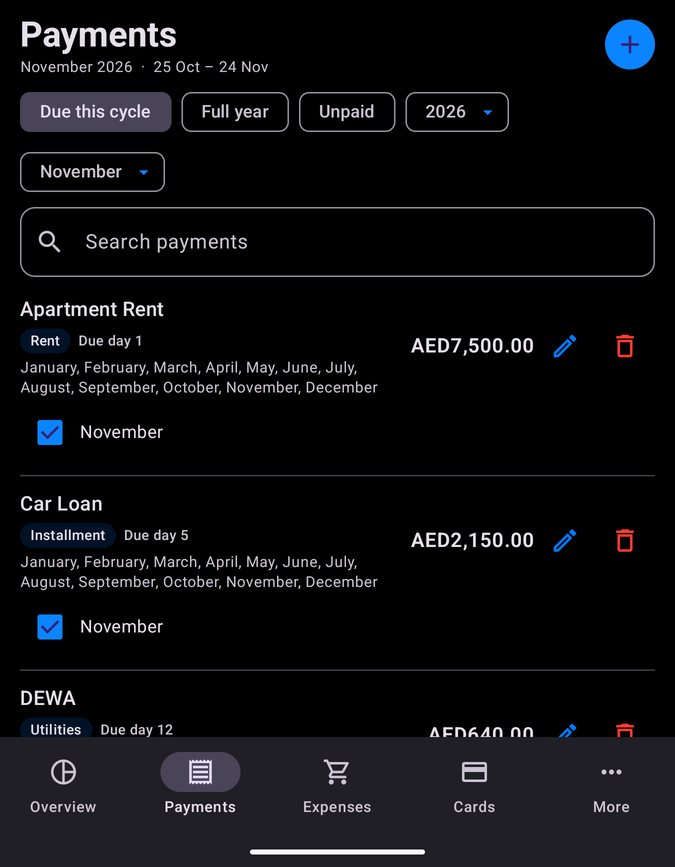
Mark a Savings-category payment as paid and the app asks where it should go. It then appears in Savings.
6Credit cards
Track what you've put on each card and what's left of the limit.
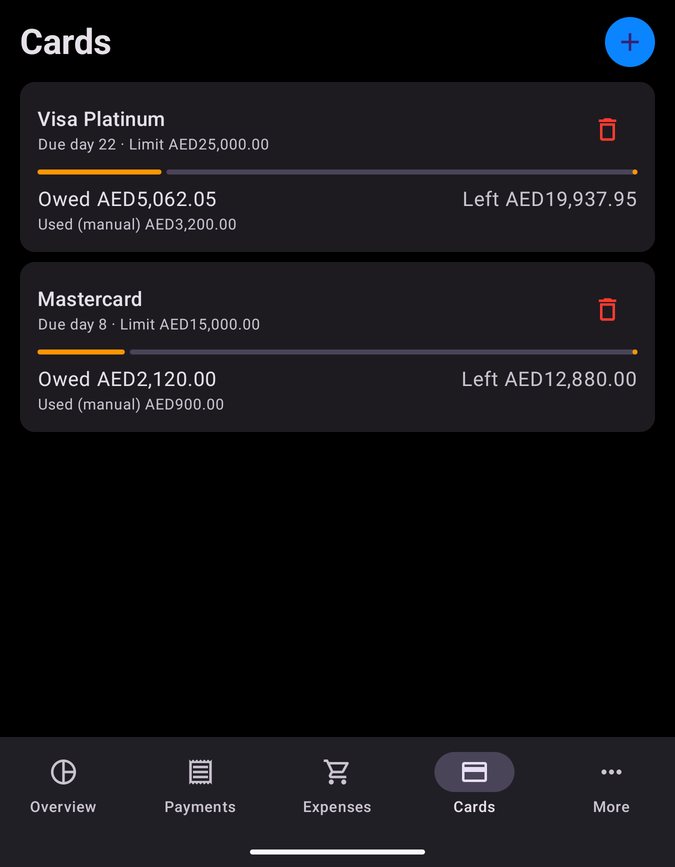
Open the Cards tab and tap +. Enter a nickname, the credit limit and the due day. The app never asks for or stores a card number or expiry date.
- Owed is everything you've marked as paid from that card, plus any amount you already owed when you added it. Left is the limit minus what's owed.
- When you add a payment or expense, set Paid from to Credit Card and pick the card.
- The app creates the card's bill as a payment on its due day. Paying that bill clears what's owed, and partial payments reduce it.
- Delete a card and its payments and expenses stay — they simply go back to Income.
7Installments
For anything paid off over several months — Tamara, Tabby, a bank loan, a car.
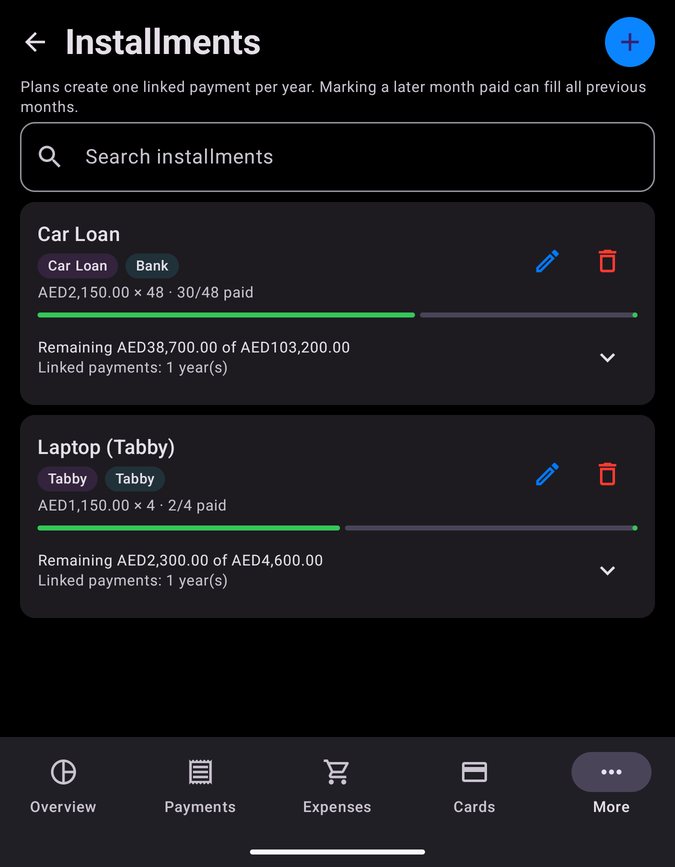
Open More → Installments and tap +. Enter the name, start date, and two of: total amount, monthly amount, number of months — the third fills in. Choose a type (Personal Loan, Car Loan, Mortgage, Credit Card, Tamara, Tabby or Other) and, if you like, a source such as the bank or shop.
When you save, the app creates matching payments, so each month also shows up in Payments and Overview. Long plans create one linked payment per year.
Catch up in one tap
Mark a later month paid and the app offers to mark the earlier unpaid months too.
8Expenses, caps & templates
Everyday spending inside a cycle — groceries, fuel, food, shopping.
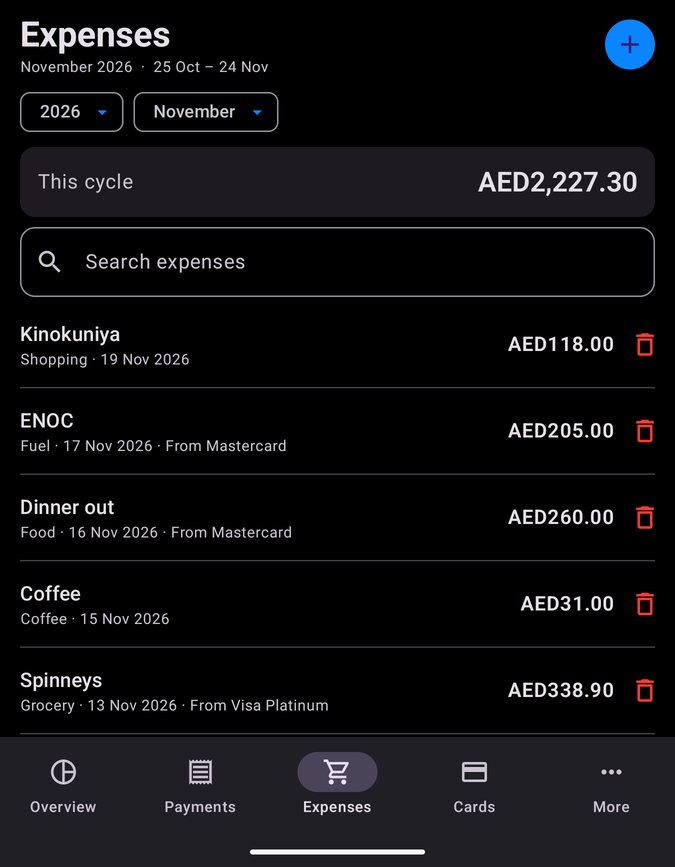
Tap + and add the name, amount, date, category and an optional note. Expenses can be paid from Income, a credit card, or savings, and they reduce Current remaining on Overview.
Templates
Spend on the same things often? Fill in an expense and tap Save as Template. Next time, pick it from From template at the top of Add Expense. Manage your templates in Settings → Expense Templates.
Monthly caps
In Settings → Expense category caps, set a monthly limit per category (leave it blank for no limit). The Expenses tab warns you when a category goes over.
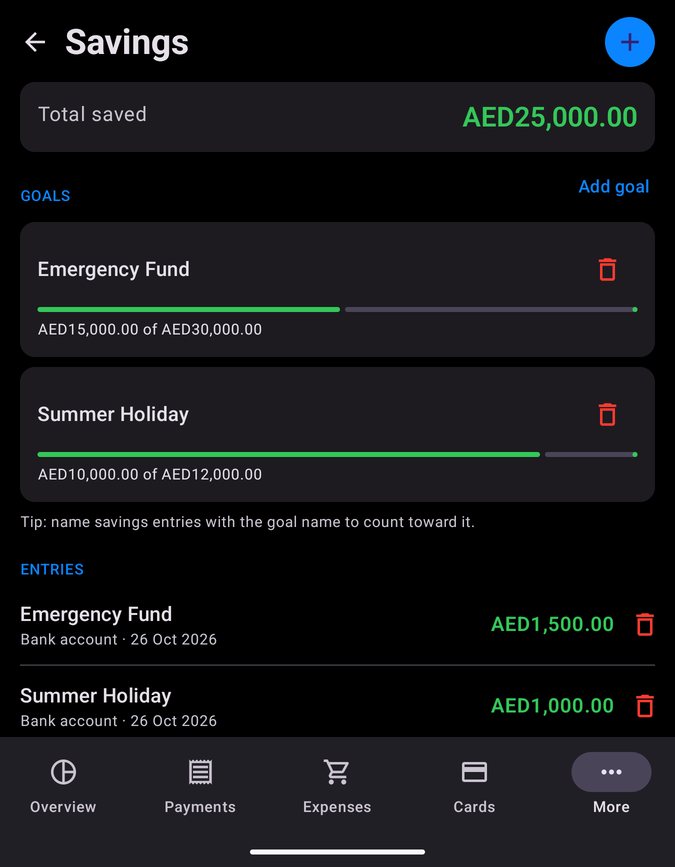
9Savings & goals
Watch your savings grow toward a target.
Savings grow in two ways: mark a Savings payment as paid, or add an entry in More → Savings. Choose where the money went — bank account, cash or other.
Goals
Tap Add goal to create a goal with a target amount, then track progress. Name savings entries with the goal name so they count toward it.
Spending from savings
When a payment or expense is Paid from → Savings, you can pick which goal it comes out of, or leave it unallocated.
10Salary & end of service
Your monthly salary breakdown and an estimate of your end-of-service award.
Salary
In More → Salary & EOS, enter Basic, Housing, Transport and Other. The total becomes the default income amount for this profile.
Country & law
- UAE — Private (typically 21 days per year for the first five years, then 30 days, on basic wage), Public, or Domestic.
- Saudi Arabia, Qatar, Kuwait, Bahrain, Oman — built-in estimates for each country's common private-sector rules.
- Other — enter your own days per year for early and later years, and whether it's based on basic or full salary.
Set your join date and, optionally, a resignation date or limited contract. Years of service update automatically.
Advances
If you've taken advances against end of service, add them with a date. Net estimate is the award after those deductions.
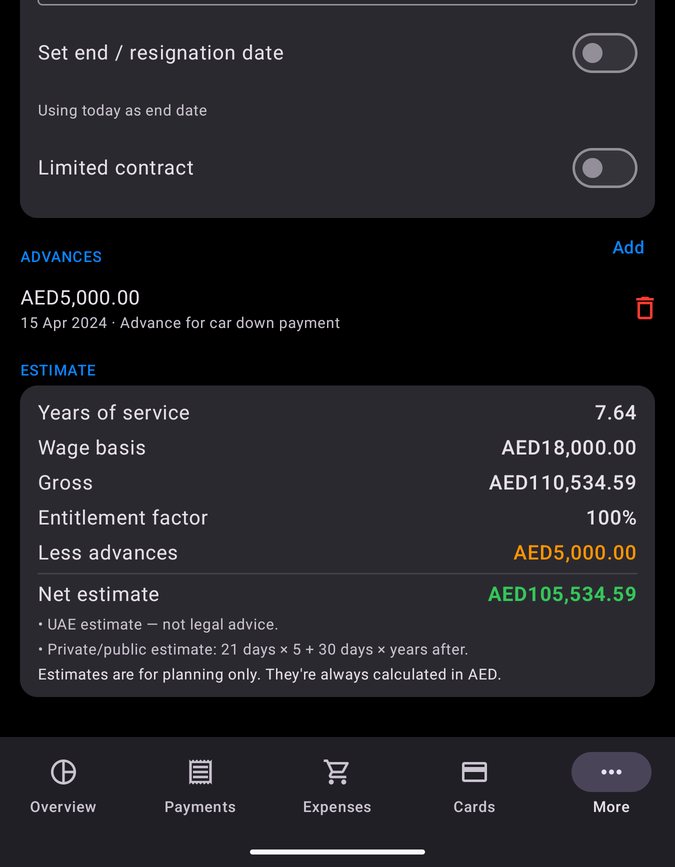
Estimates are for planning only — confirm final amounts with your employer or official guidance. They're always calculated in AED, so changing the display currency doesn't change the estimate.
11Settings
Currency, reminders, year tools and more — under More → Settings.
Currency & exchange rates
Amounts are stored in AED and shown in the currency you choose — USD, EUR, GBP, SAR, QAR and others. Rates refresh once a day when you're online; tap Refresh live rates any time, or type your own rate and tap Save Rates. Check with your bank when an exact conversion matters.
Reminders & calendar
Turn on Payment Reminders and choose how many days before the due date to be notified (1–14). Android asks once for permission to show notifications. Export to Calendar adds your due dates to your phone's calendar, with an alert before each.
Year tools
Copy payments or income from one year into the next, so January planning takes seconds. Items already there are skipped.
Also in Settings
- Defaults and Expense category caps and Expense Templates.
- Google Drive Sync and Data Transfer (backup and restore).
- Danger Zone — reset all app data. This is permanent.
- About — privacy policy, this guide, and Contact Developer.
12Backup & moving from iPhone
Keep a copy of everything in a single file — and bring your data from the iPhone app.
In Settings → Data Transfer, tap Export Backup (JSON) and save the file somewhere safe, like Google Drive or Downloads. To restore, tap Import Backup (JSON) and pick the file.
Moving from iPhone or Mac
- On iPhone or Mac, open Settings → Data Transfer → Export Backup and send the file to yourself (email, Drive, or a cable).
- On Android, save the file — for example to Downloads.
- In the Android app, tap Import Backup (JSON). In the file picker, open the ☰ menu and choose Downloads (not Recent), then tap the file.
The file format is the same on both, so it works the other way too. Use the iPhone app's version 2.6 or later for a full copy — older backups bring income, payments, installments, expenses and savings, but not cards, goals or other profiles.
How restoring works
- The backup's main profile is restored into the profile you're currently using, replacing its data.
- Your other profiles are matched to the ones on your phone — updated if they exist, created if they don't.
Importing replaces data, so export a fresh backup first if you're unsure. The backup file isn't encrypted — keep it somewhere private.
13Google Drive sync
The same numbers on all your Android phones and tablets — end-to-end encrypted.
- In Settings → Google Drive Sync, tap Turn on Google Drive sync.
- Choose your Google account and allow access to the app's own Drive data.
- Create a sync passphrase (at least 8 characters). On your other devices, sign in with the same Google account and enter the same passphrase.
- Your data is encrypted on your phone with your passphrase before it goes to a hidden folder in your own Google Drive. Google and the developer can't read it, and the app can't see anything else in your Drive.
- Changes sync a few seconds after you make them, when you open or leave the app, and every few hours.
- If two devices change different things, both changes are kept. If both change the same item, the device that syncs wins — but an edit is never lost to a delete.
- Turn off stops syncing on that device; Delete from Drive removes the encrypted copy.
The passphrase can't be recovered. If you forget it, delete the Drive data and turn sync on again from a device that has your data. Sync is between Android devices only — to move between iPhone and Android, use backup.
14Home-screen widgets
See what's left without opening the app.
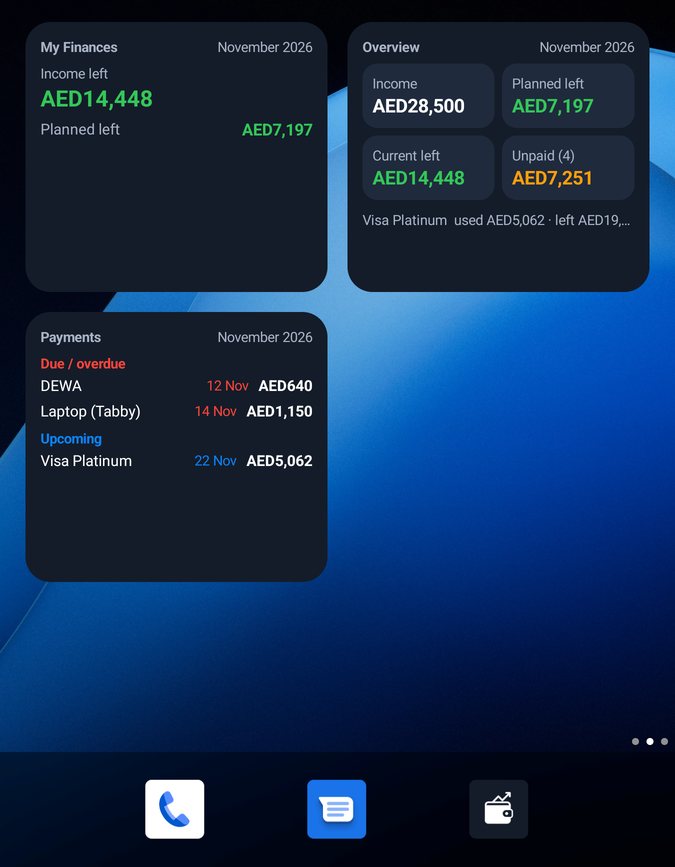
Long-press an empty spot on your home screen, tap Widgets, find My Finances Planner and drag one out. There are three:
- Snapshot — income left and planned left, plus your cards on larger sizes.
- Overview — income, planned left, current left and unpaid, and your first card.
- Payments due — overdue and upcoming bills with their dates.
Tap a widget to open the app. Widgets update when you change something, when you leave the app, and every 30 minutes.
Widgets show amounts on your home screen even while the app is locked. Remove them if you'd rather keep figures out of sight.
15Questions
Quick answers to the things people ask most.
Is the Android app free?
Yes — every feature in the Android app is free, including multiple profiles and cards, backups, PDF export and Drive sync.
Why does Overview show a cycle like 27 Jul – 26 Aug?
Your profile's cycle starts on day 27. Change it in Settings → Billing Cycle — choose day 1 for calendar months.
Why is planned remaining negative?
Your planned payments for the cycle add up to more than the income you've recorded. Add income, adjust your plans, or check you're on the right profile and month.
A payment doesn't show in this cycle.
Check its due day, year and selected months. A payment belongs to the cycle that contains its real due date — not "day 16 of the cycle".
The file picker says "Can't load" when importing.
The picker opened on a folder it can't read (often Recent, or a cloud app that isn't signed in). Open the ☰ menu and choose Downloads or your phone's storage.
I'm not getting payment reminders.
Check that reminders are on in Settings, that notifications are allowed for the app in Android settings, and that battery saving isn't stopping the app in the background.
Sync says "Reconnect Google Drive".
Google access was removed or expired. Tap Reconnect Google Drive and sign in again; your passphrase isn't needed.
Can I sync with my iPhone?
No — iPhone and Mac use iCloud, and Android uses your Google Drive. To move data between them, export a backup on one and import it on the other.
My end-of-service estimate changed when I picked another country.
Each country uses its own rules. Choose Other to enter your own days per year, or switch back to UAE to restore the UAE estimate.
What's new
The Android app, version by version.
2.6 November 2026 · first Android release
- Everything from the iPhone app's version 2.6: cycle overview, bills, cards, installments, expenses, savings goals and end-of-service estimates.
- Home-screen widgets, payment reminders, calendar export and PDF reports.
- Optional Google Drive sync between Android devices, end-to-end encrypted.
- Expense templates, and import of backups from the iPhone and Mac apps.